
Overview
Connect your Stripe account to let Clara securely manage customers, payments, invoices, subscriptions, and other Stripe resources on your behalf. Once connected, Clara can also surface Stripe activity within your timeline (if supported by your plan).
Clara connects to Stripe using a Restricted API Key, allowing you to grant only the permissions you choose.
Connect Stripe
Follow these six steps to create a Restricted API Key and connect it to Clara.
Open the Stripe Dashboard
Go to dashboard.stripe.com and sign in to your Stripe account. Decide which environment you want Clara to connect to:
- Test Mode — Uses sandbox data for testing.
- Live Mode — Uses your real Stripe account and customer data.
Use the Test Mode toggle at the top of the Stripe Dashboard to switch between Test and Live mode.
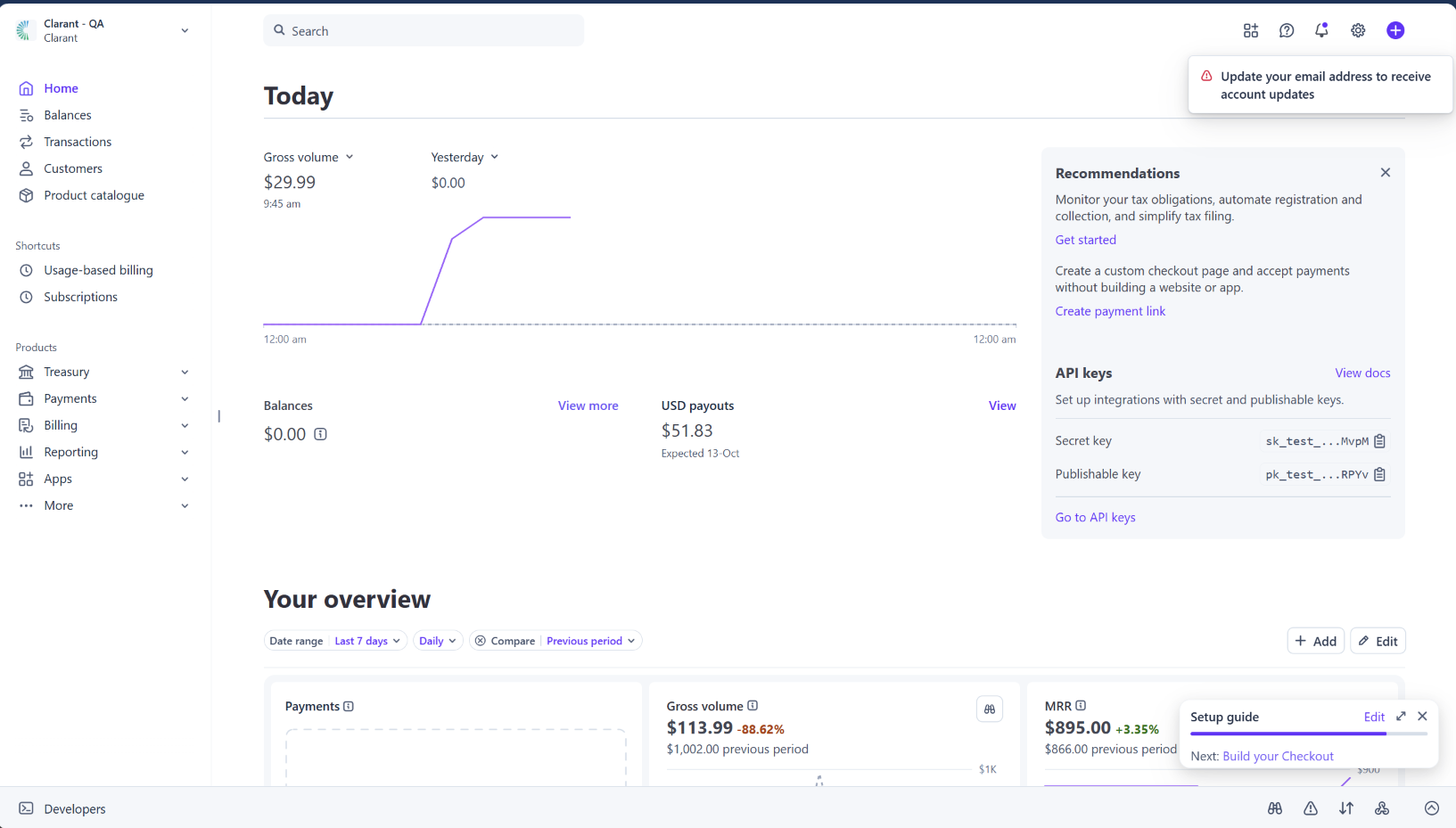
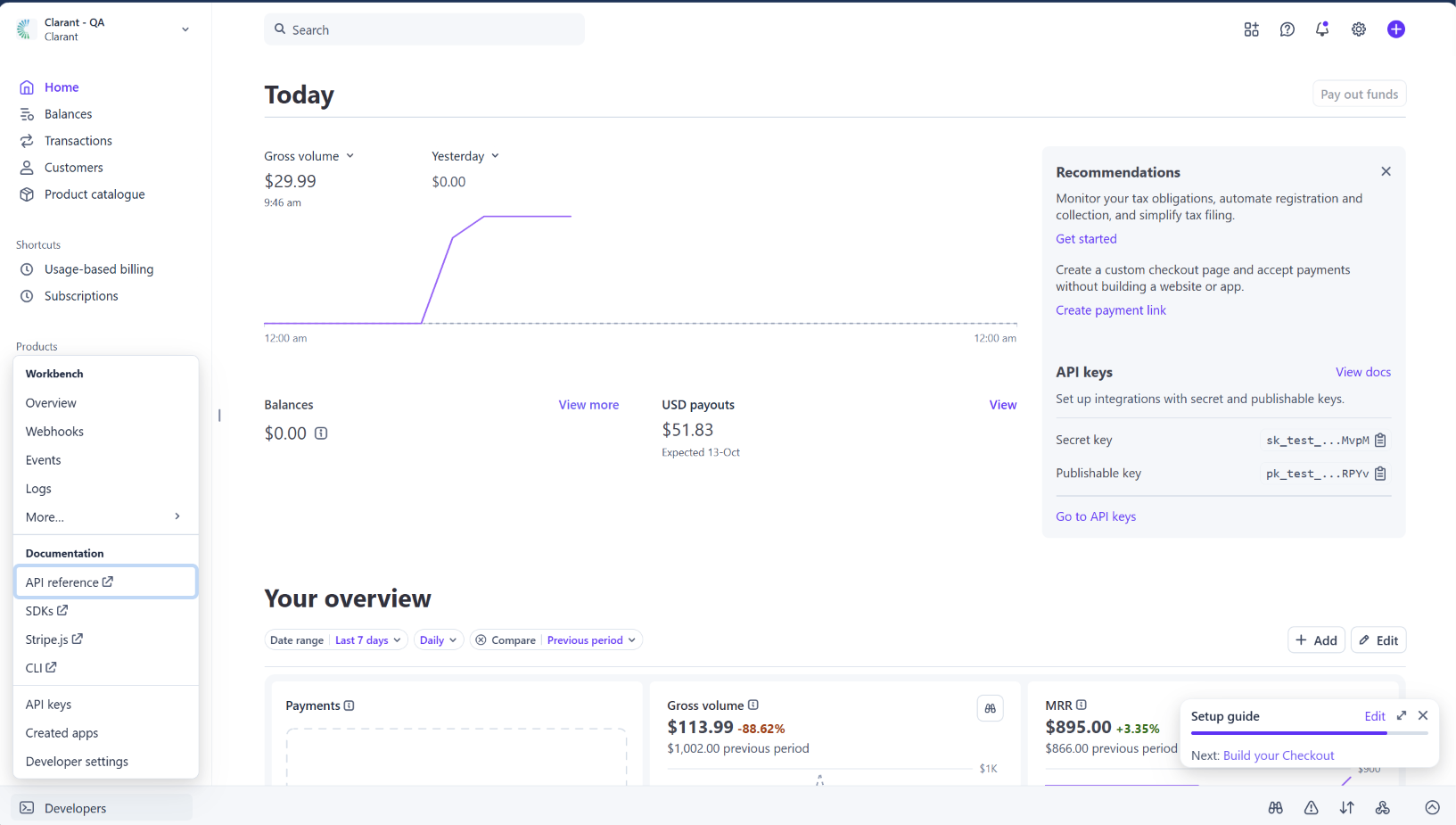
Create a Restricted API Key
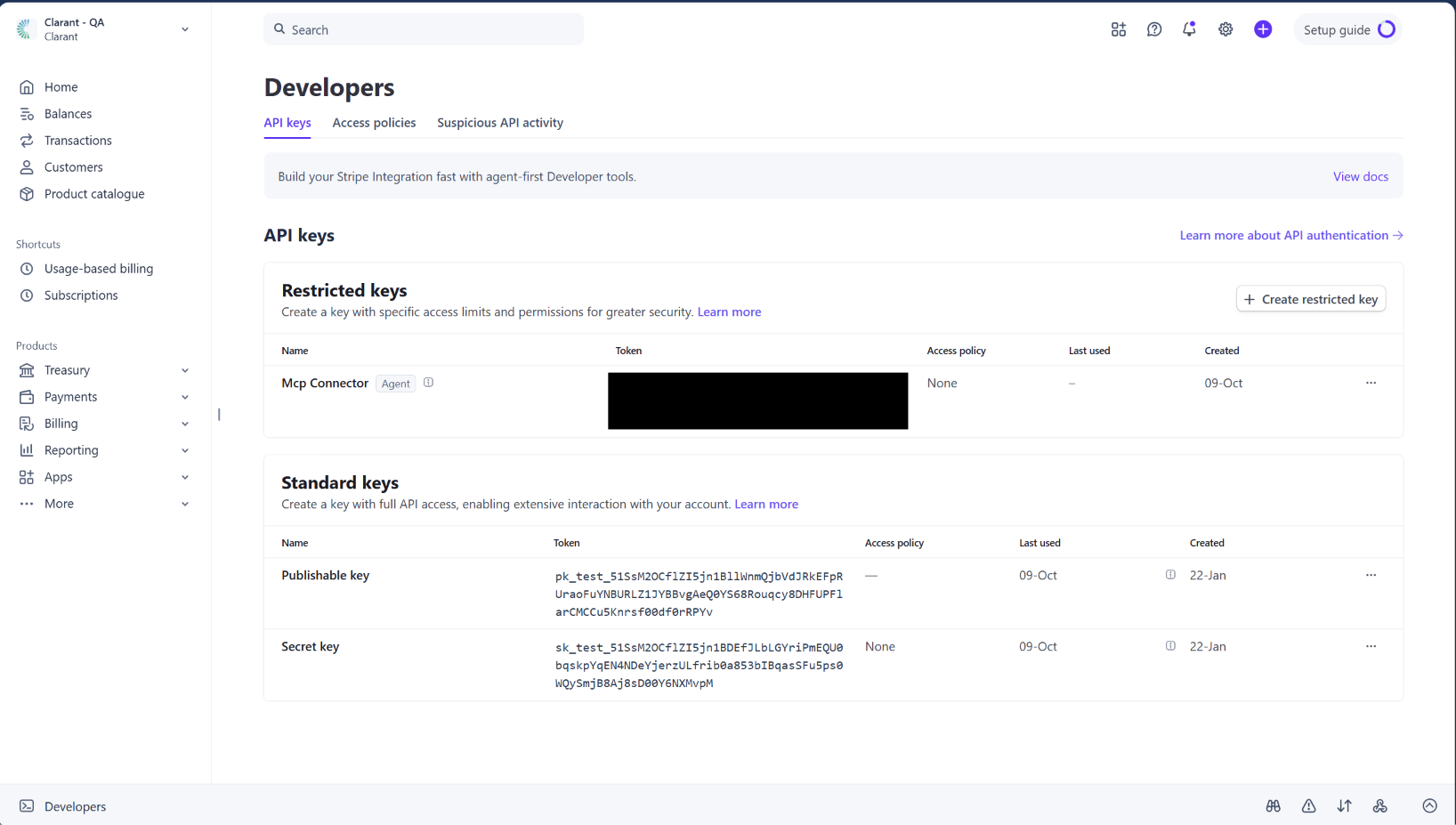
From the left navigation menu, click Developers → API Keys. Direct link: dashboard.stripe.com/apikeys.
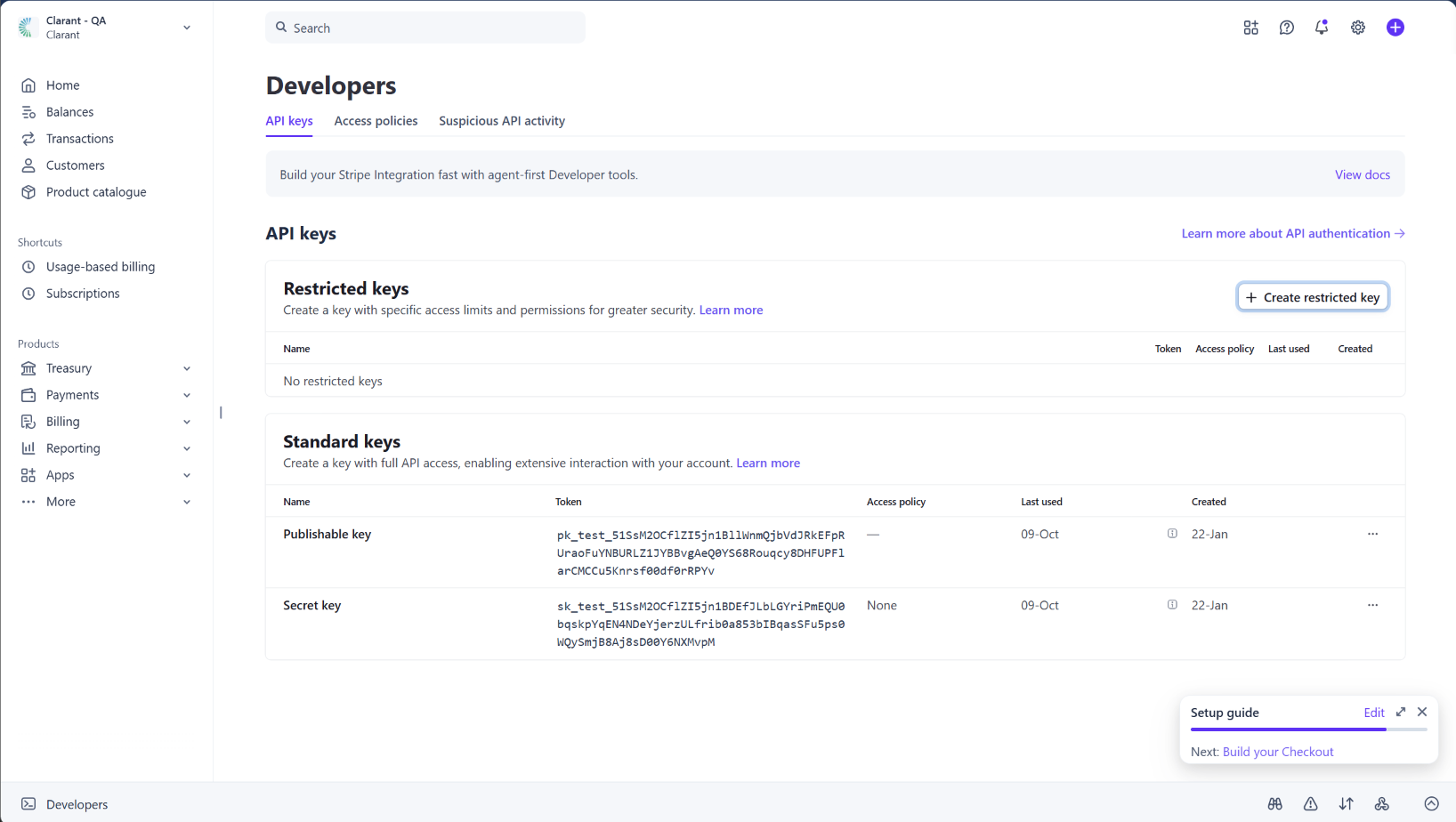
Scroll to the Restricted Keys section and click Create Restricted Key.
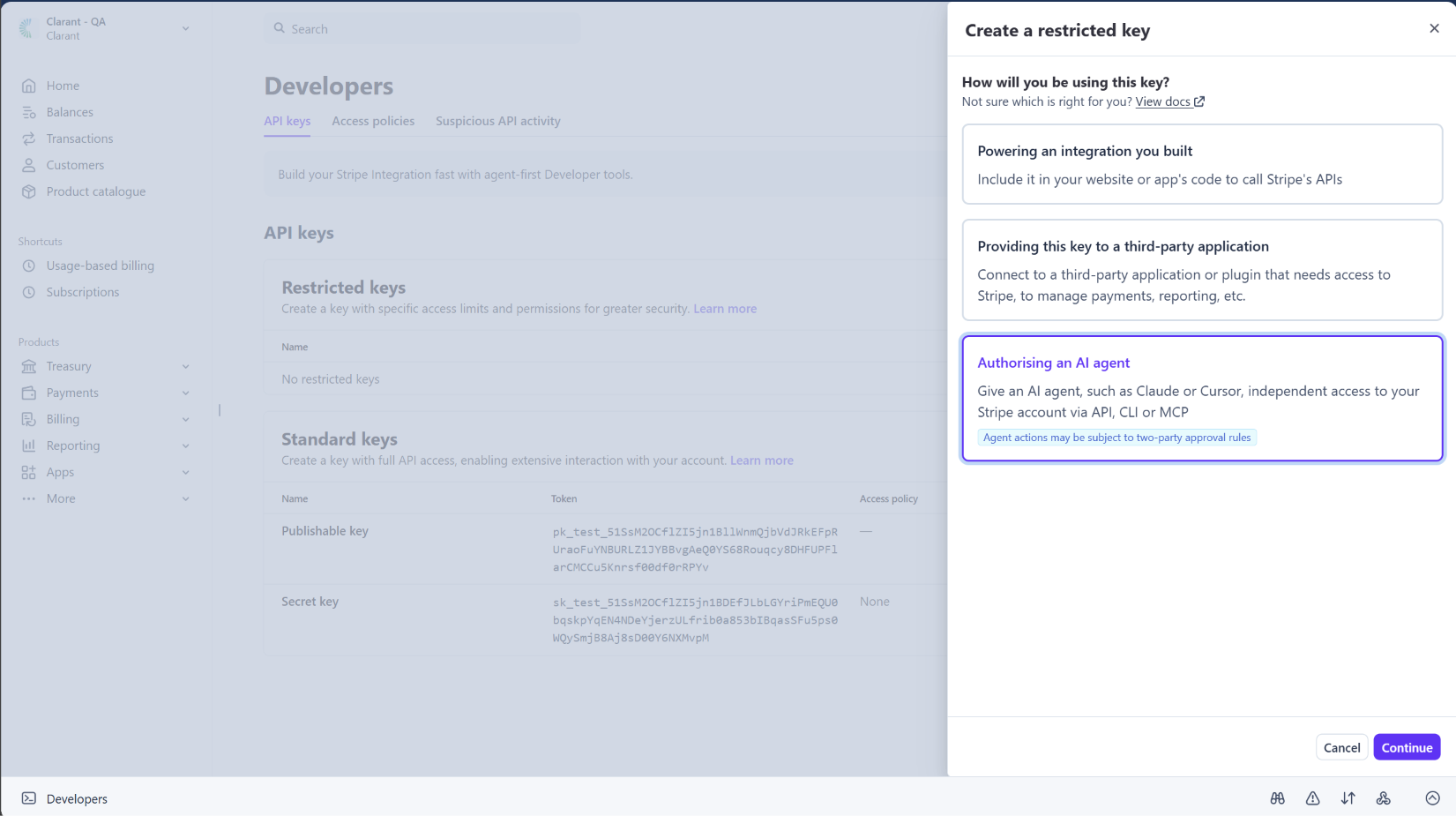
Select Authorizing an AI Agent, then click Continue. Stripe opens the Create Restricted API Key page.
Enter a Connector Name
Enter a recognizable name for the Restricted API Key.
Recommended value: Clara Connector
Configure the required permissions
When creating the Restricted API Key, every permission is initially set to None. Configure the following permissions.
Required permissions
| Permission | Access level |
|---|---|
| Customers | Write |
| Charges and Refunds | Write |
| Payment Intents | Write |
| Invoices | Write |
| Subscriptions | Write |
| Events | Read |
Recommended permissions
For the best experience, enable the following additional permissions.
| Permission | Access level |
|---|---|
| Products | Write |
| Prices | Write |
| Payment Methods | Write |
| Coupons | Write |
| Promotion Codes | Write |
| Tax IDs | Write |
| Credit Notes | Write |
| Balance | Read |
| Payouts | Read |
| Checkout Sessions | Write (if using Stripe Checkout) |
| Payment Links | Write (if creating payment links) |
Create and copy the API Key
Click Create Key. Stripe displays the key only once. Click Reveal, then copy the complete Restricted API Key.
The key will begin with:
rk_test_...(Test Mode)rk_live_...(Live Mode)
Connect Stripe in Clara
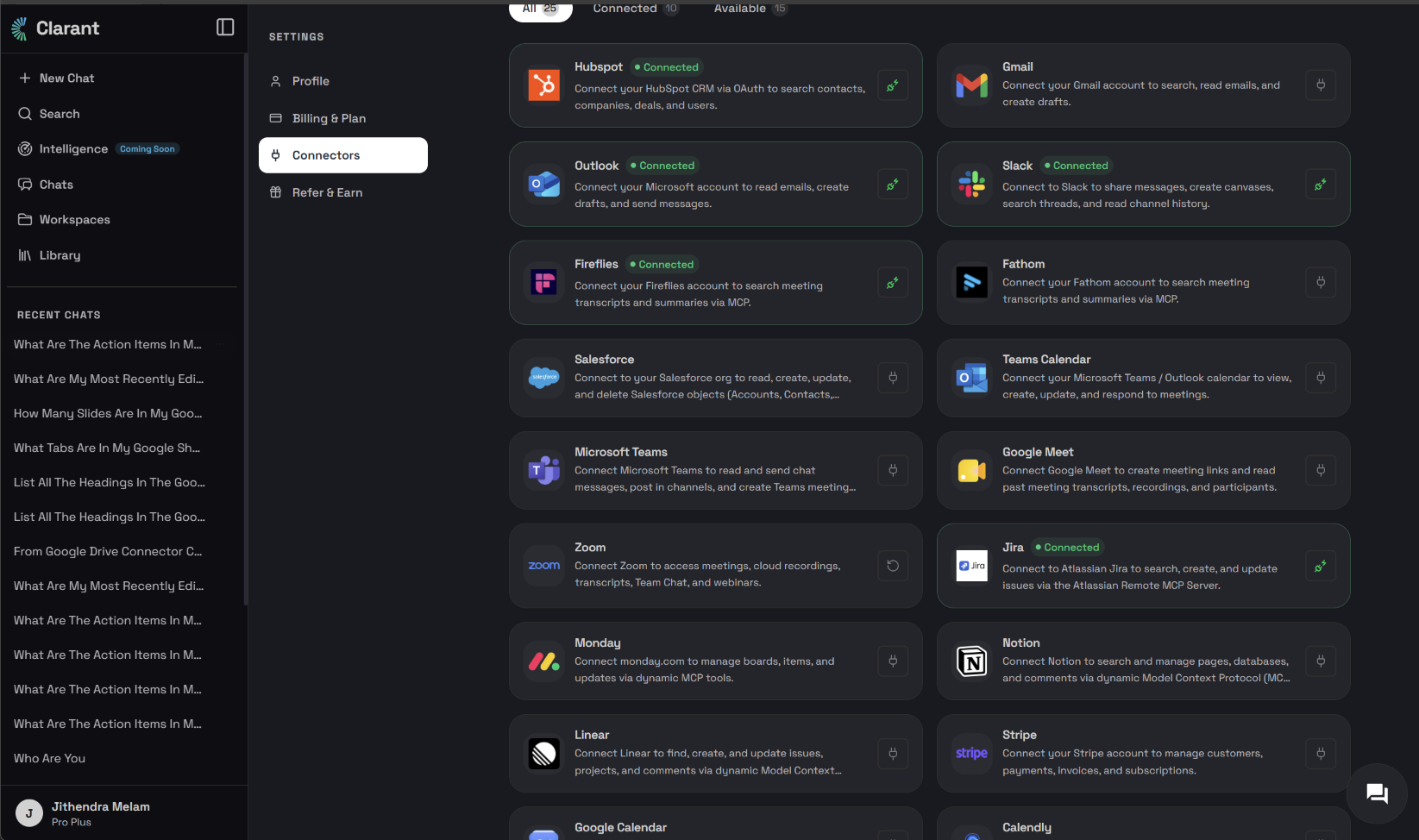
Open Clara and navigate to Settings → Connectors, then select Stripe.
Paste your Restricted API Key into the Stripe Secret Key field, then click Connect.
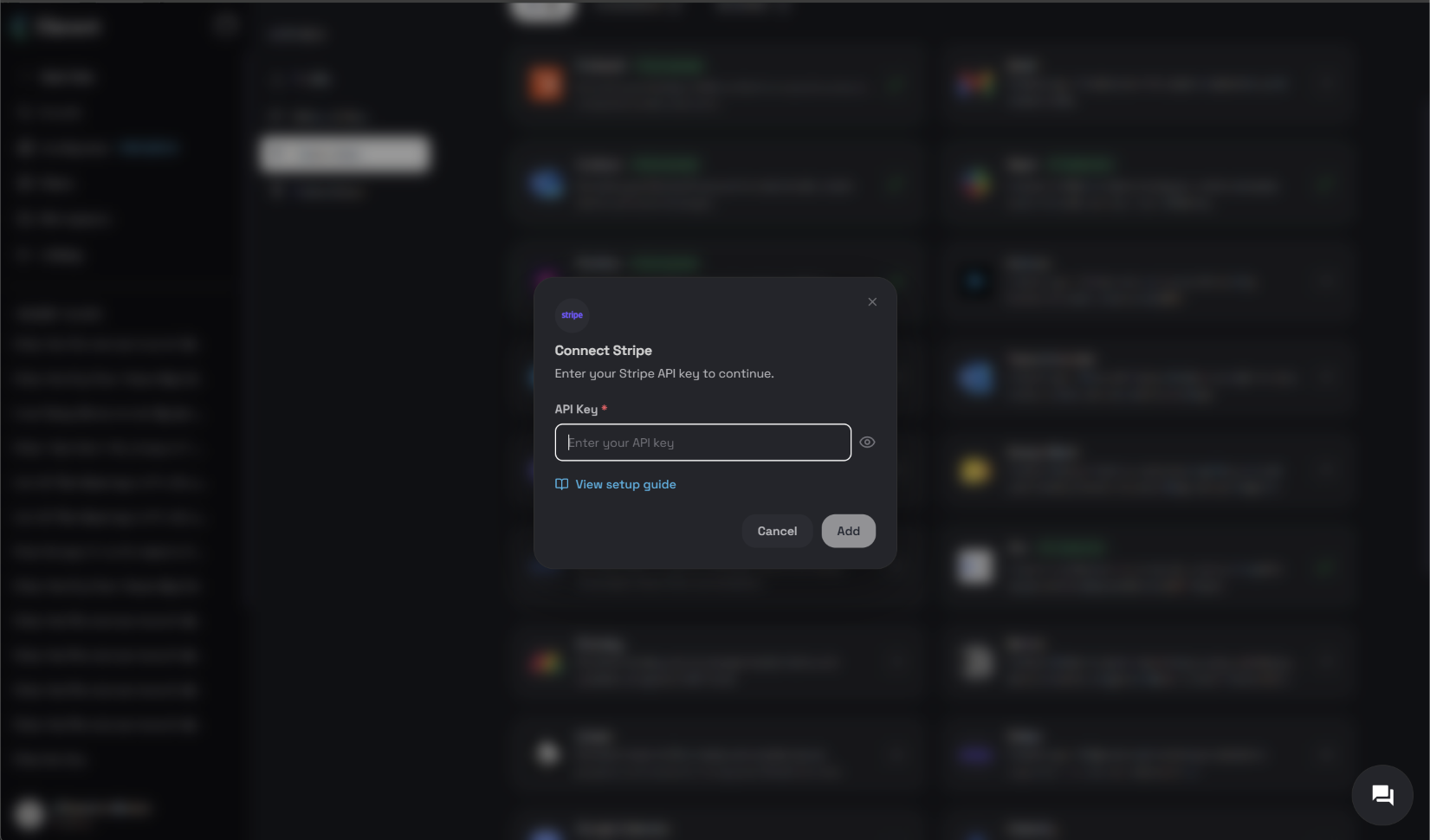
Clara will:
- Validate your API Key.
- Detect whether it is a Test or Live key.
- Load the available Stripe tools.
- Begin syncing recent Stripe activity (if supported by your subscription).
Good to Know
Clara only receives the permissions granted through your Restricted API Key.
You can revoke or rotate the key at any time by navigating to Stripe Dashboard → Developers → API Keys.
Revoking the key immediately disconnects Clara without affecting any other Stripe services.
Test Mode vs Live Mode
| Mode | Details |
|---|---|
| Test Mode | Uses sandbox data. Safe for testing integrations. No real transactions are processed. |
| Live Mode | Uses your actual Stripe account with real customer and payment information. Recommended for production use. |
Updating permissions
If Clara cannot perform a particular Stripe action, the corresponding permission may still be set to None. To update permissions:
- Open the Stripe Dashboard.
- Navigate to Developers → API Keys.
- Update the Restricted API Key permissions, or create a new Restricted Key.
- Reconnect the key inside Clara.
Troubleshooting
| Issue | Possible cause | Resolution |
|---|---|---|
| Invalid API Key | The copied key is incorrect or has been revoked. | Verify the key starts with rk_test_ or rk_live_, then copy it again or create a new Restricted API Key. |
| No Stripe data appears | You're using a Test key with no test data, or required permissions are missing. | Create test transactions, or enable the required permissions and reconnect. |
| Permission error while performing an action | The required permission is still set to None. | Update the Restricted API Key permissions to Read or Write, then reconnect Clara. |
Need Assistance
If you experience any issues while connecting Stripe to Clara, verify that:
- You created a Restricted API Key.
- All required permissions have been granted.
- You copied the complete API Key.
- The key has not been revoked.
- You are connecting to the correct environment (Test or Live).
Once configured correctly, Clara will securely connect to your Stripe account and make the authorized Stripe capabilities available within the platform.