
Overview
Clara is an AI-powered enterprise assistant that connects HubSpot, SharePoint, Gmail, Outlook, Slack, Microsoft Teams, Salesforce, and other business systems into a unified knowledge platform.
With Clara, users can:
- Search and retrieve information from HubSpot CRM using natural language.
- Ask questions across documents, emails, chats, meetings, and CRM systems.
- Receive AI-generated answers with source citations.
- Organize content into workspaces for teams and departments.
- Access business knowledge from multiple connected systems in a single interface.
Prerequisites
Before connecting HubSpot to Clara, ensure that:
- You have an active Clara account.
- You have a HubSpot account.
- You have permission to install applications in HubSpot.
- You have access to the Clara administration portal.
Install the Integration
Follow these six steps to authorize Clara to access your HubSpot data.
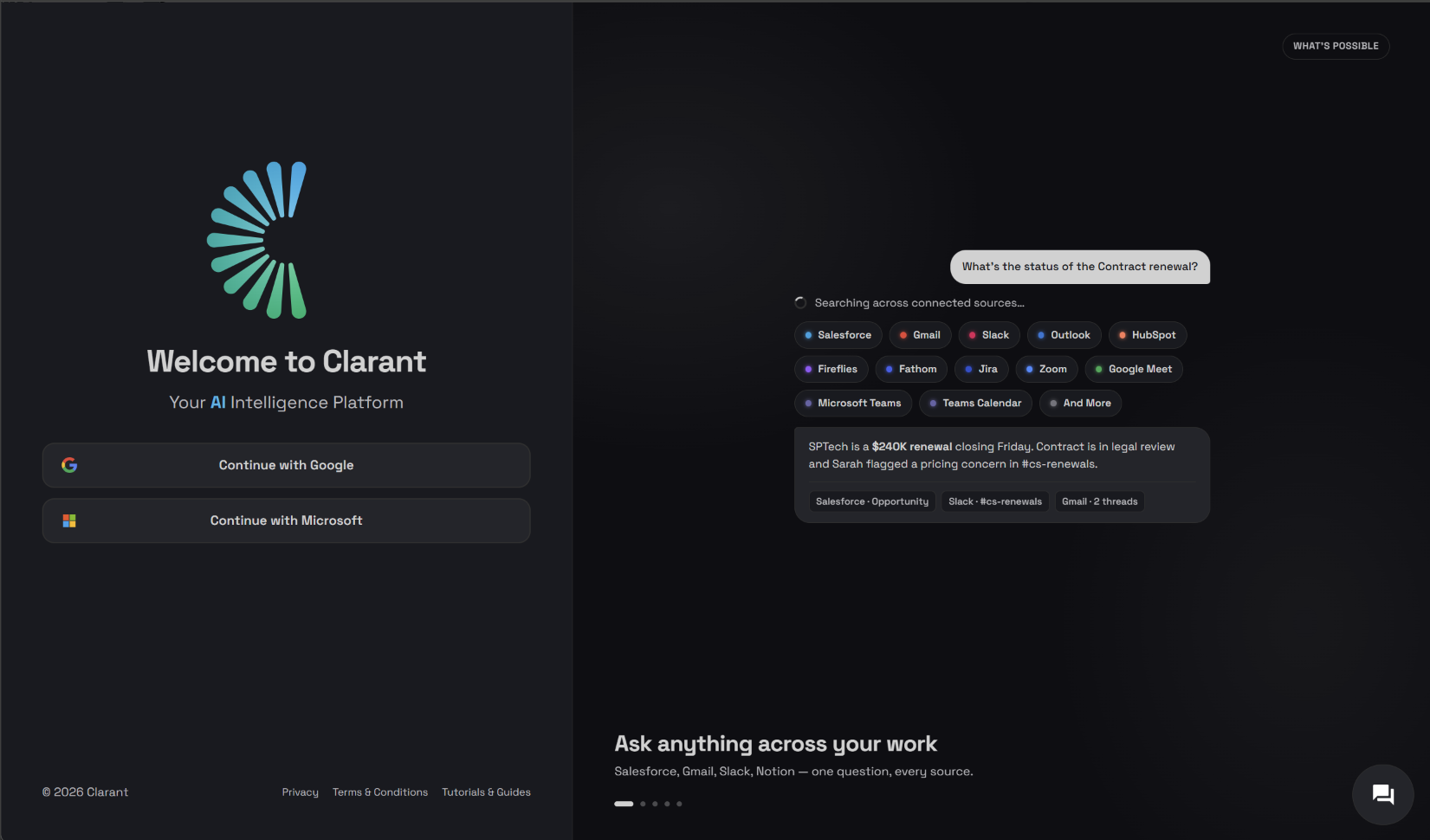
Sign in to Clara
Open Clara and sign in using your account credentials.
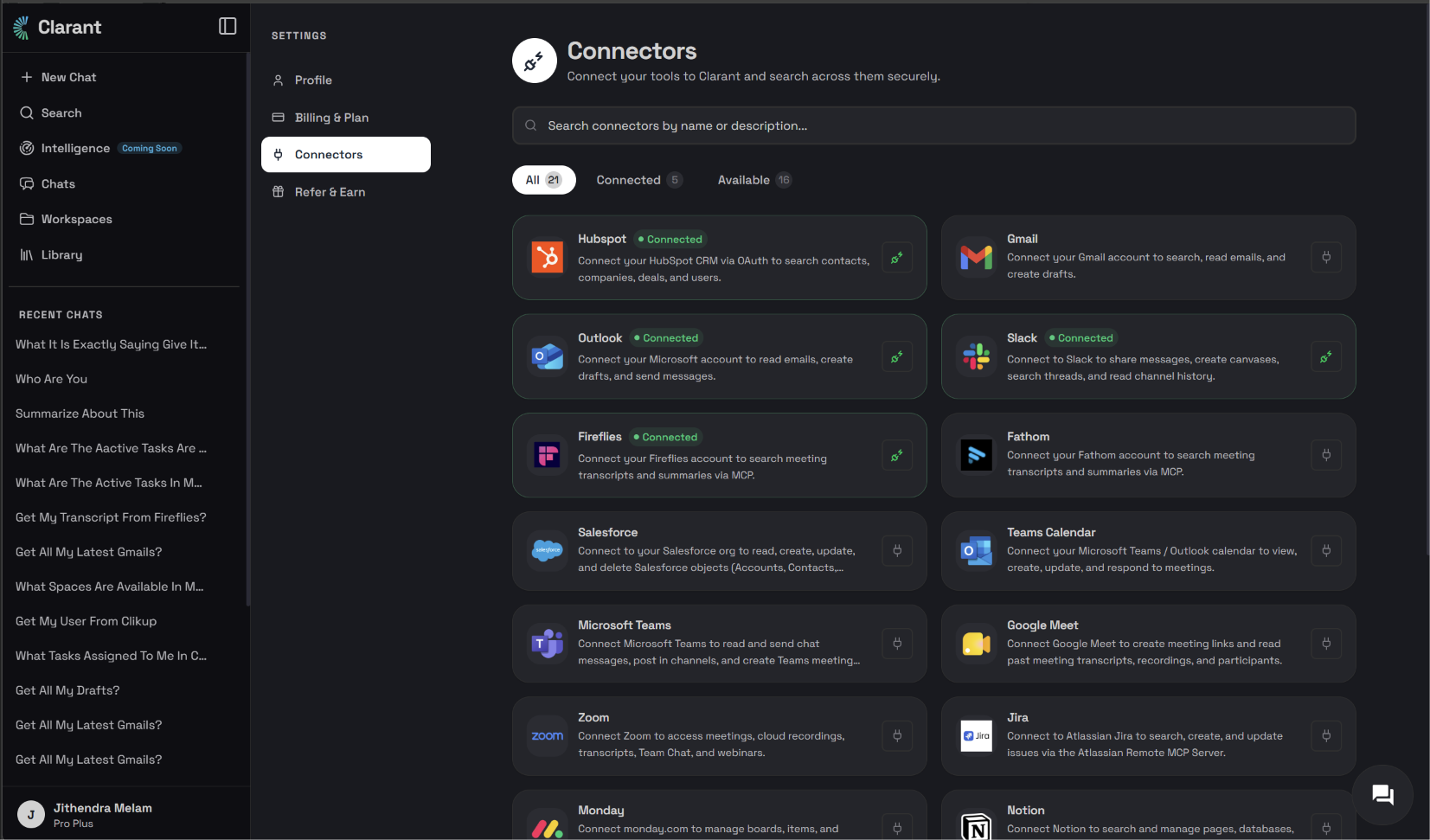
Navigate to Connectors
Open the navigation menu and select Connectors.
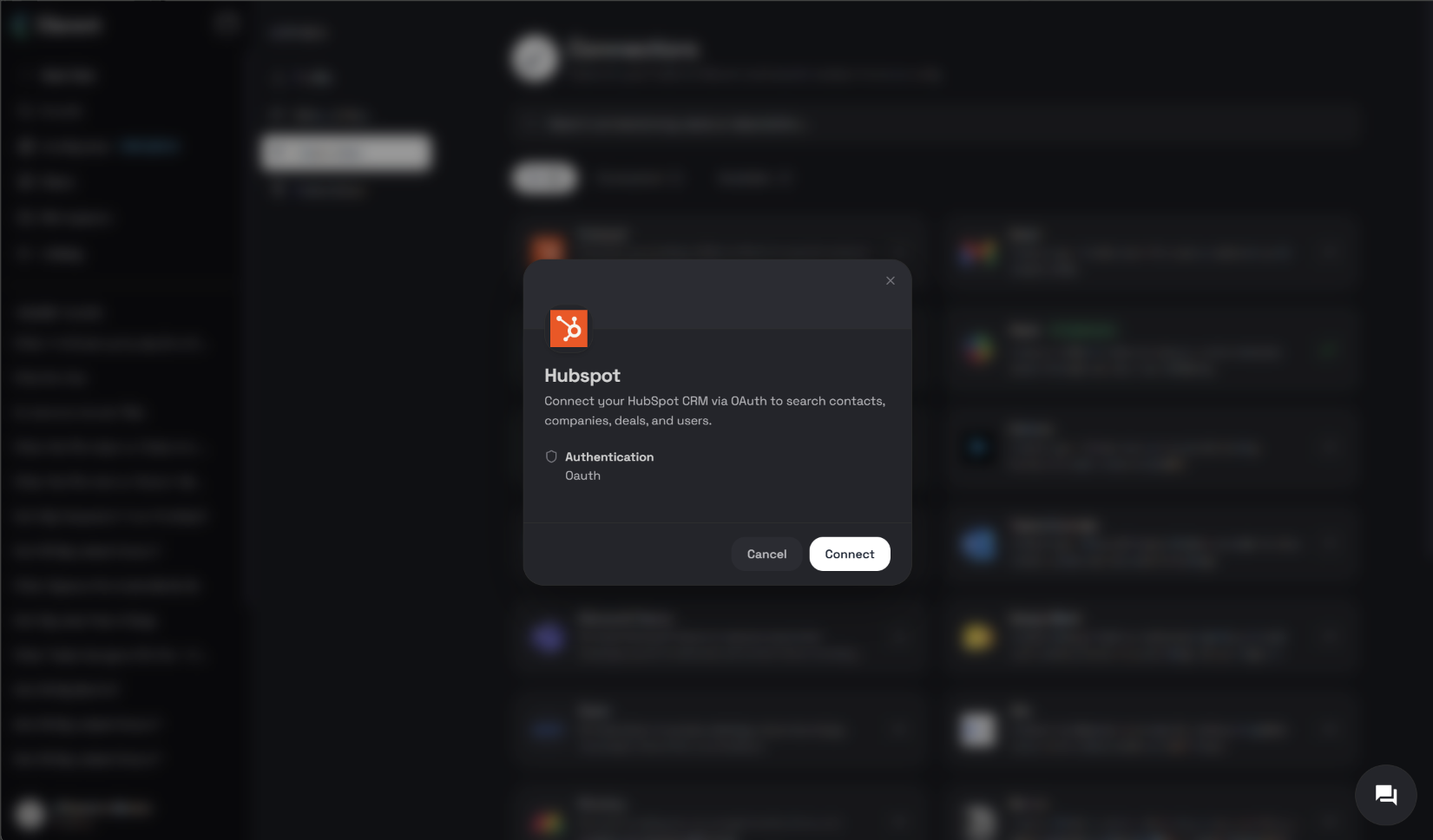
Select HubSpot
Locate the HubSpot connector and click Connect.
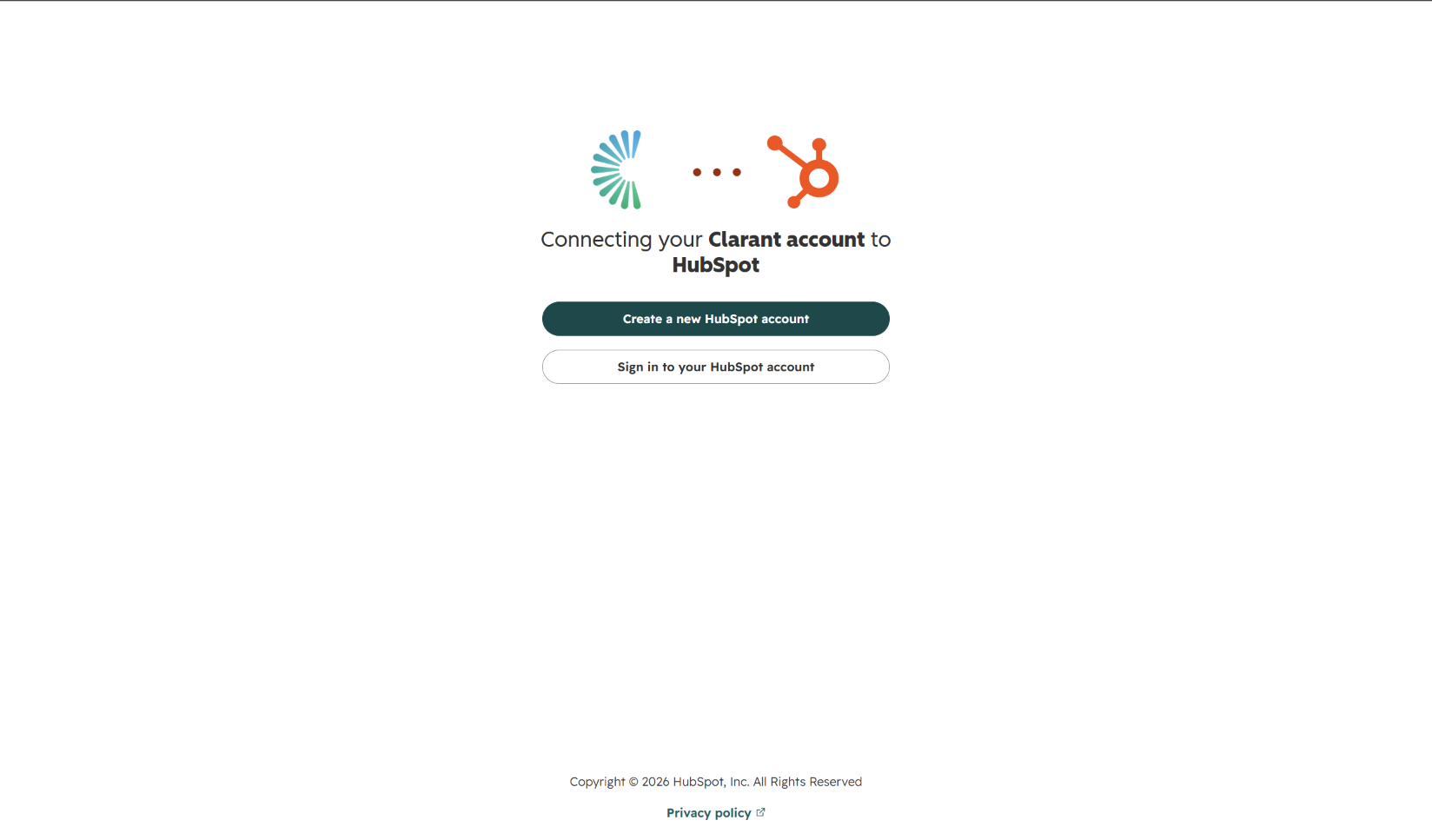
Choose your HubSpot account
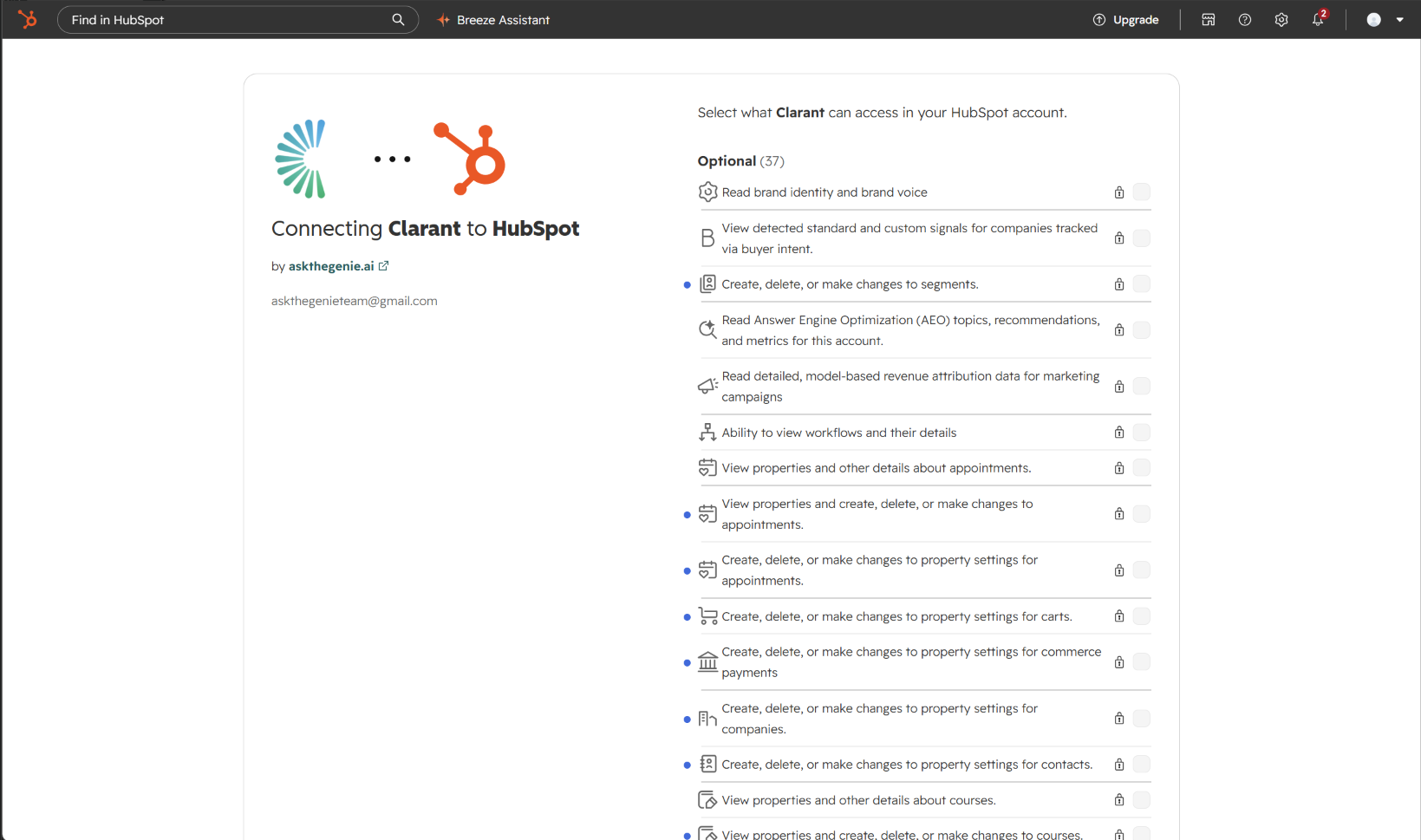
After clicking Connect, you will be redirected to HubSpot. Select the HubSpot account you wish to connect, then click Choose Account.
Review permissions
Clara requests access to HubSpot data required to provide AI-powered CRM insights. Requested permissions may include:
- Read CRM objects
- Read contacts
- Read companies
- Read deals
- Read tickets
- Read engagement data
Review the requested permissions carefully, then click Connect App.
Connection complete
After successful authorization:
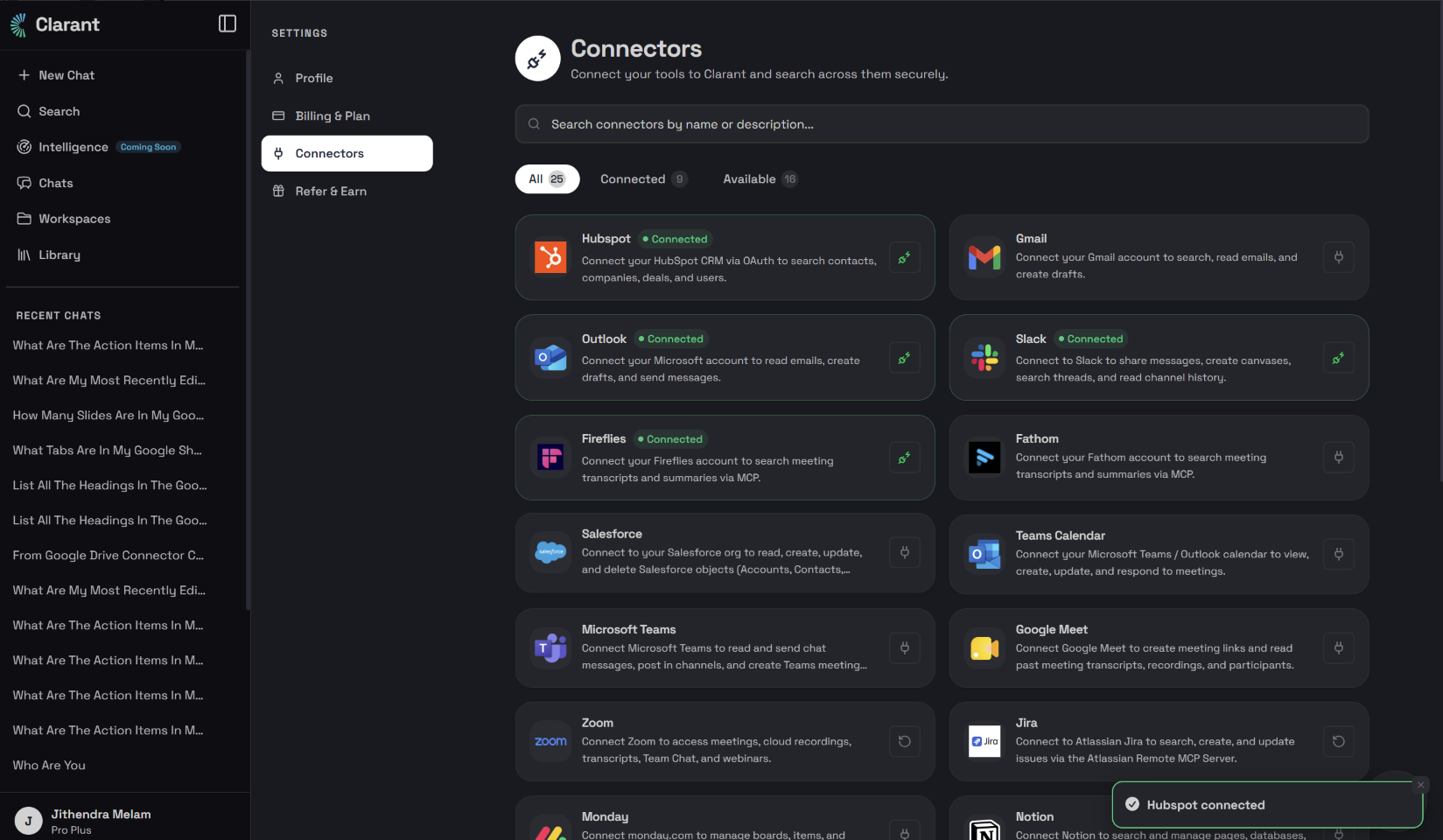
- You will be redirected back to Clara.
- HubSpot will appear as Connected in the Connectors dashboard.
Configure the Integration
Verify the HubSpot connection
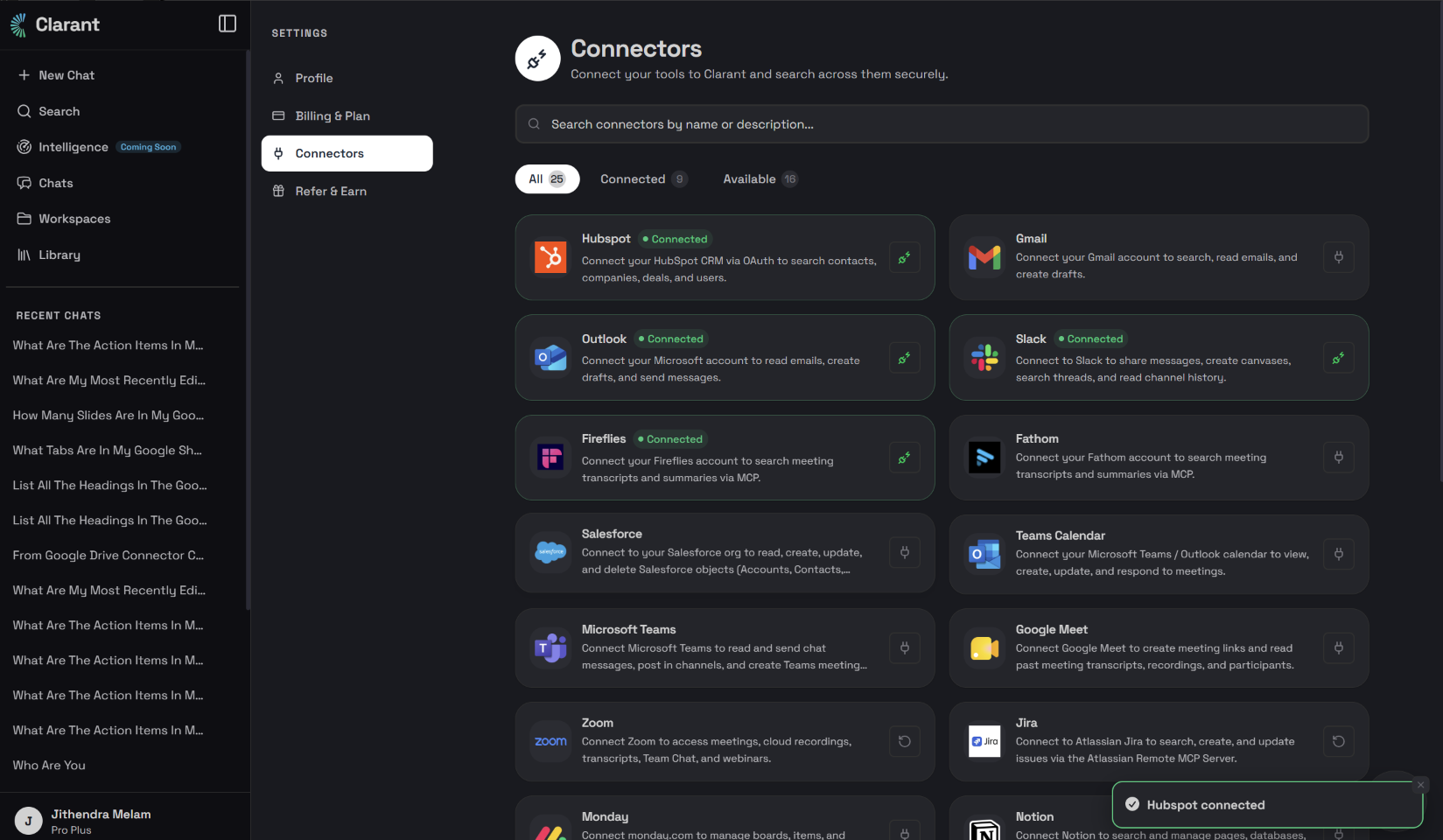
- Navigate to Connectors.
- Confirm HubSpot displays a Connected status.
Configure workspace access
- Navigate to Workspaces.
- Create a new workspace or open an existing workspace.
- Assign connected HubSpot data sources to the workspace.
Configure data sources
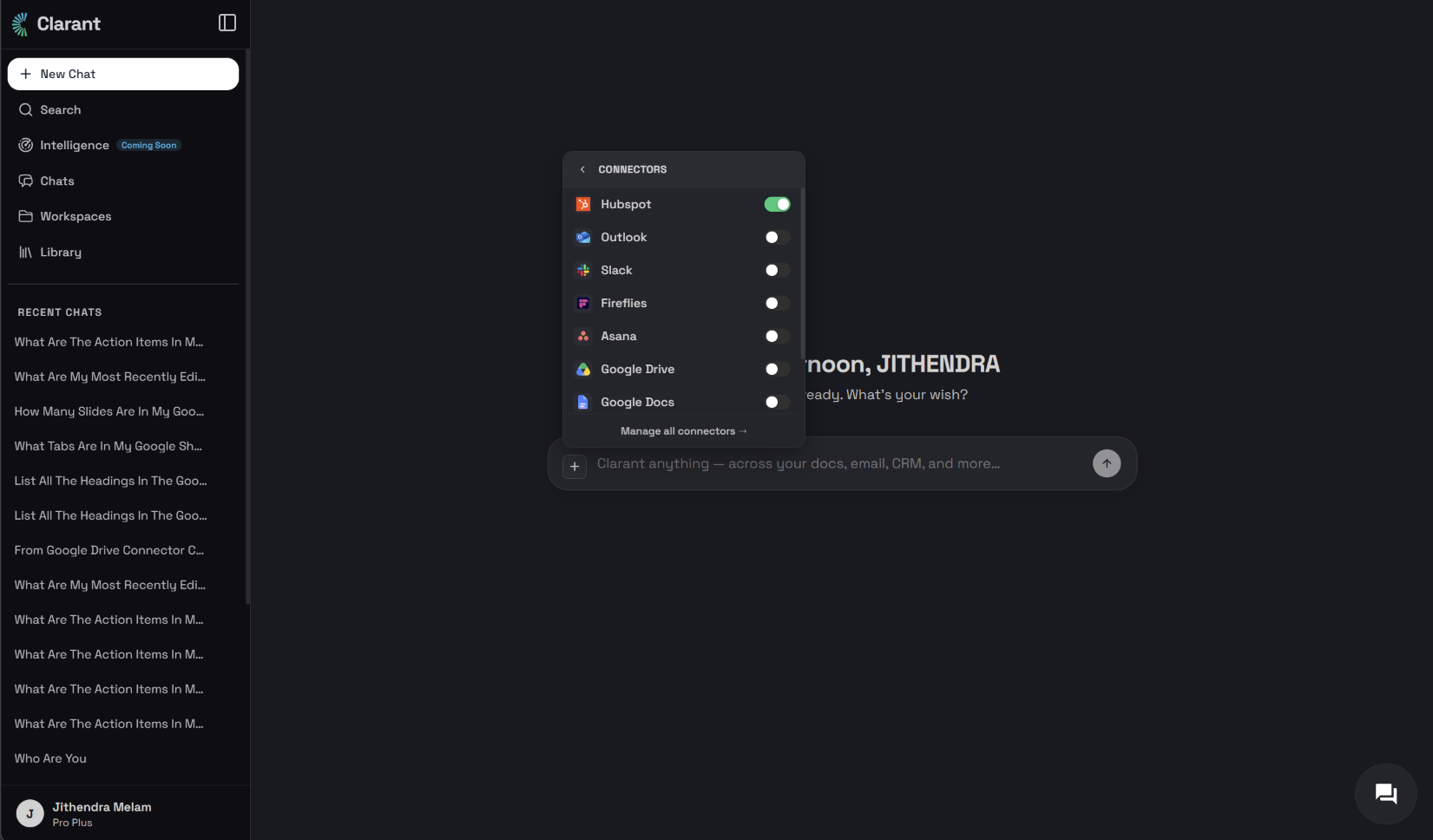
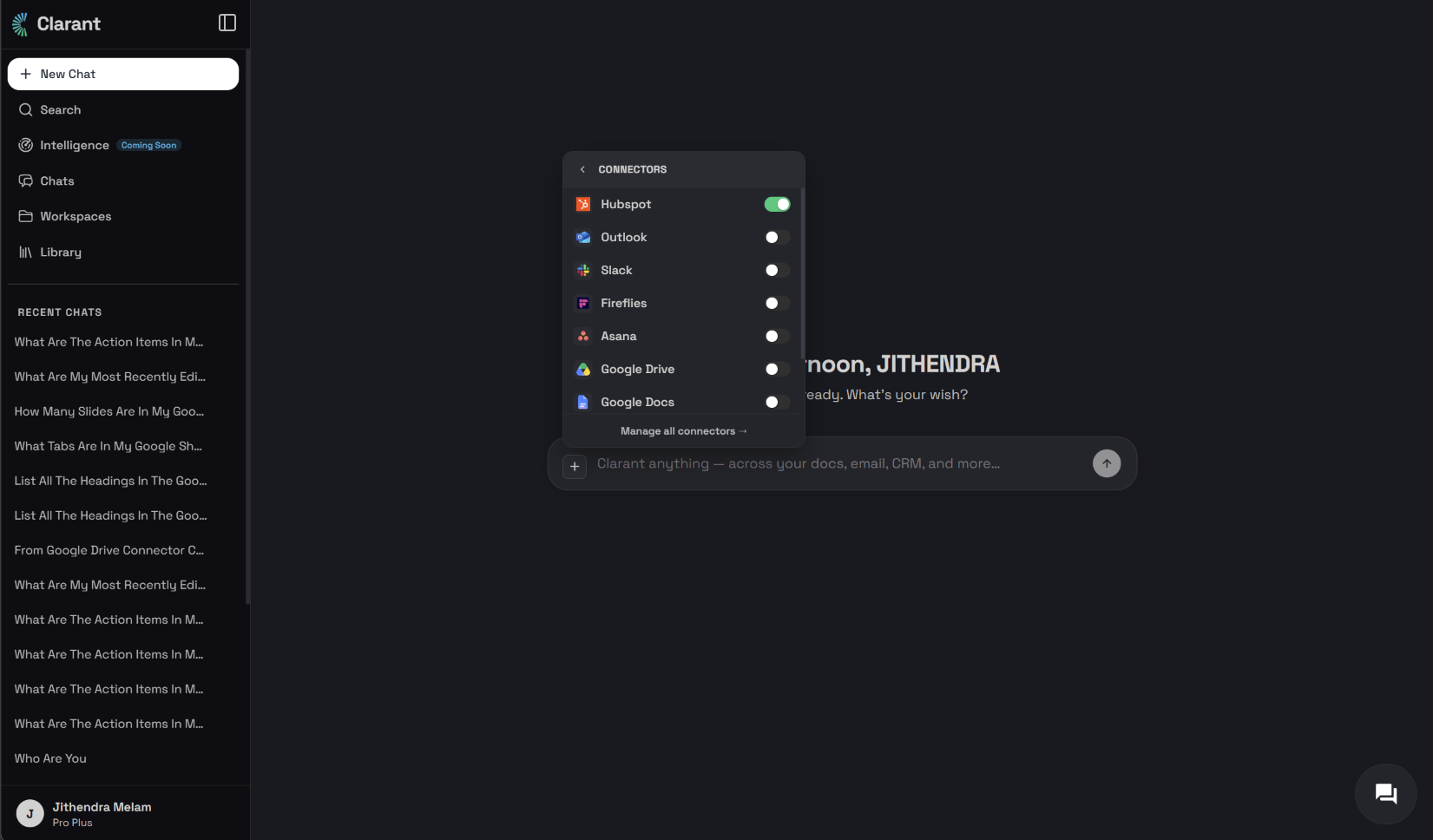
Within the workspace, toggle which connected systems should be available (see the connector panel above). Examples:
- HubSpot CRM
- SharePoint
- Gmail
- Outlook
- Slack
- Salesforce
Using Clara
After setup is complete, users can begin asking questions using natural language.
Sales pipeline questions
- Which deals are closing this month?
- Show my top open opportunities.
- Summarize my sales pipeline.
- Which deals have had no activity for 30 days?
Contact questions
- Find contacts associated with Deal X.
- Show recent activity for Company Y.
- List recently created contacts.
Business knowledge questions
- Search documents related to customer onboarding.
- Find meeting notes discussing pricing changes.
- Summarize customer feedback from multiple sources.
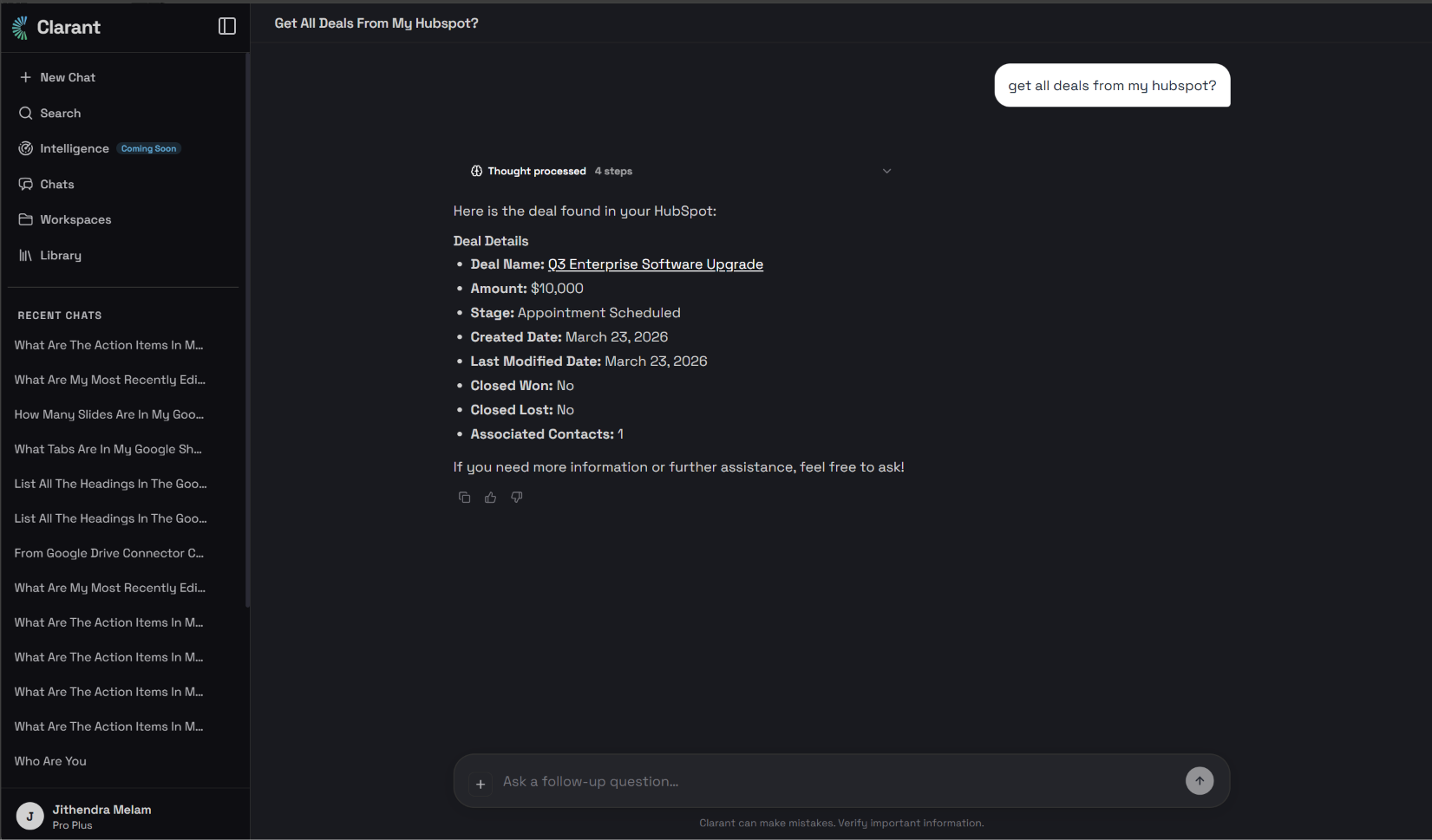
Example AI response
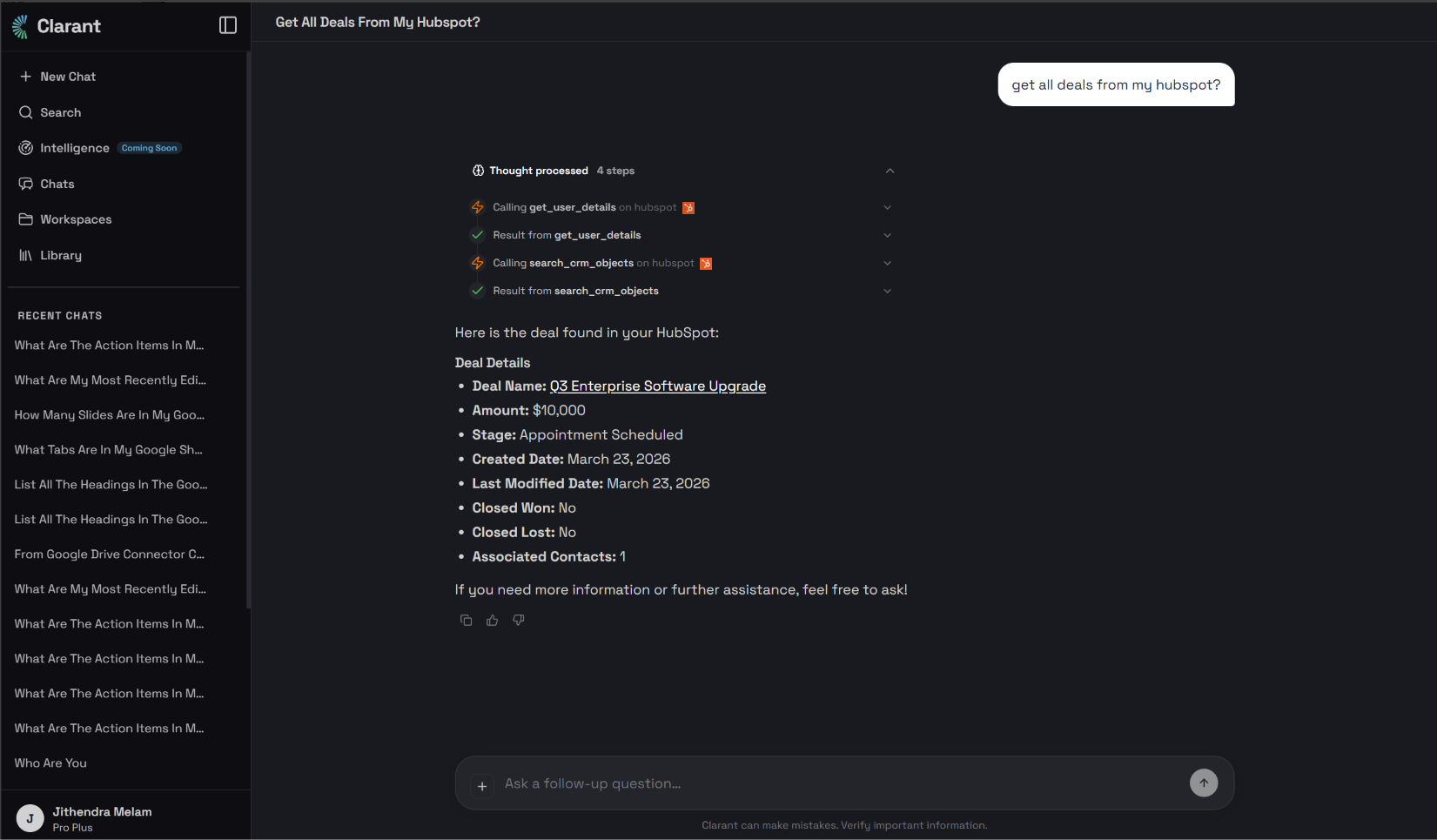
Clara retrieves information from connected systems and generates a consolidated answer. The response may include deal information, contact details, pipeline insights, document references, and source citations.
Citations & Sources
Clara provides citations whenever source information is available. Sources may include:
- HubSpot CRM
- SharePoint documents
- Emails
- Meeting transcripts
- Slack conversations
Disconnecting HubSpot
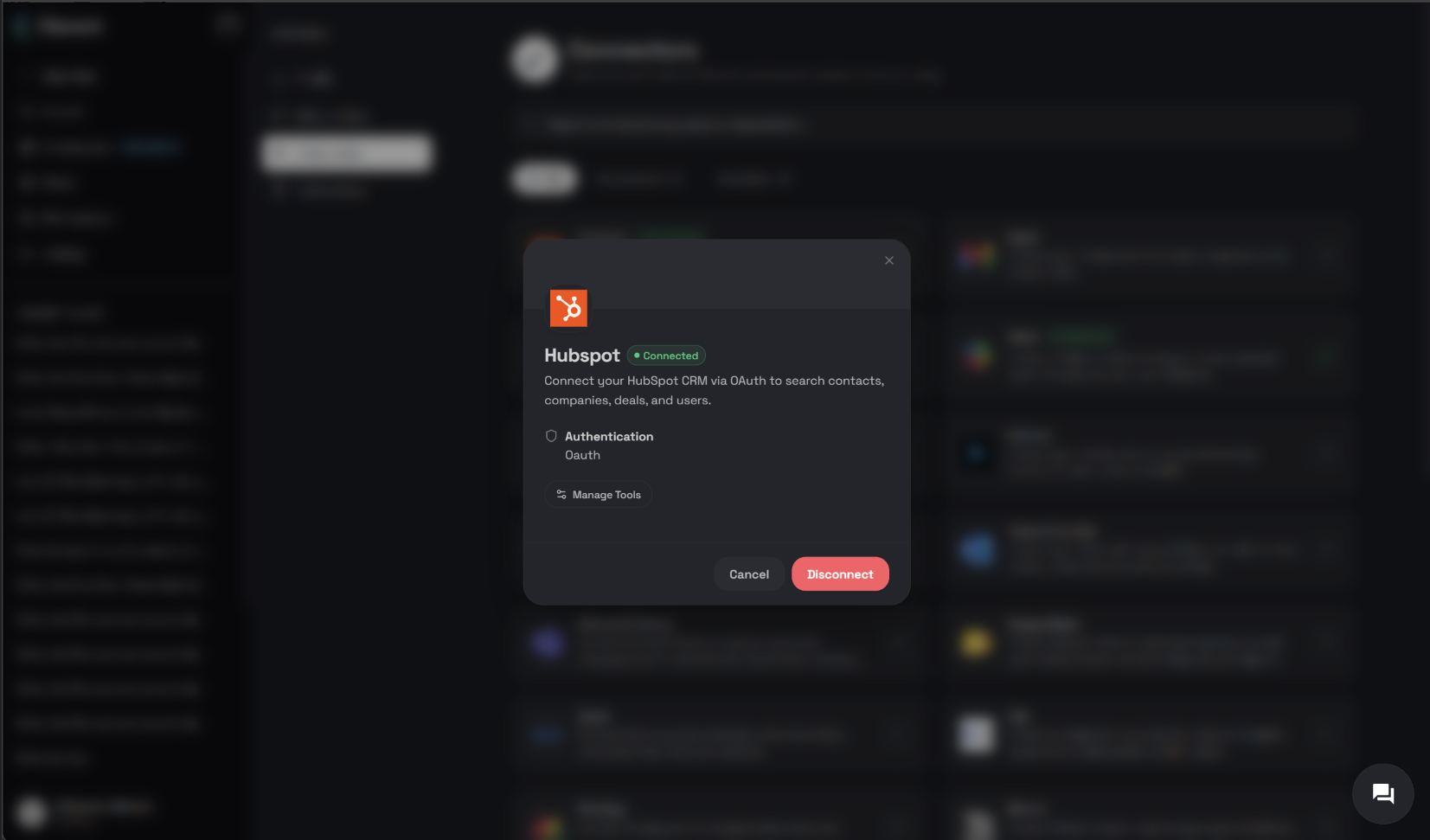
Disconnecting HubSpot prevents Clara from accessing new HubSpot data.
Existing indexed information may remain available according to your organization's data retention settings.
Disconnect steps
- Navigate to Connectors.
- Locate HubSpot.
- Click Disconnect.
- Confirm the action.
Uninstalling the Integration
To completely remove Clara from HubSpot:
- Log in to HubSpot.
- Navigate to Settings.
- Select Integrations.
- Locate Clara.
- Click Uninstall.
You may also follow HubSpot's official uninstall instructions available in the HubSpot Knowledge Base.
Data impact of uninstalling
Before uninstalling, consider the following:
- HubSpot access permissions will be revoked.
- Future synchronization will stop.
- New CRM data will no longer be available in Clara.
- Existing indexed content may be retained according to organizational retention policies.
- Previously generated conversations and insights may remain accessible unless deleted by an administrator.
Privacy & Security
Clara is designed with enterprise security and privacy considerations. For additional information, refer to:
- Privacy Policy
- Terms of Service
- Security Documentation
- GDPR Compliance Information
Troubleshooting
| Issue | What to check |
|---|---|
| HubSpot does not appear connected | Verify that authorization was completed successfully. Confirm the correct HubSpot account was selected. Reconnect the integration if necessary. |
| No CRM results returned | Verify that HubSpot contains accessible CRM records. Confirm that required permissions were granted. Ensure the workspace includes the HubSpot connector. |
| Access issues | Contact your Clara administrator if you experience permission-related issues. |
Support
For assistance with installation, configuration, or troubleshooting: