
Overview
Connecting Box lets Clara find, read and reason over the documents in your Box account using plain language — no folder digging, no downloading.
Once connected, Clara can:
- Find content — search files and folders by keyword, file type or date, and browse your folder tree
- Read documents — contracts, proposals, reports, spreadsheets, presentations and code
- Answer questions about a single file or across many at once, with citations back to the source
- Extract structured data — dates, amounts, parties, or any fields you define, using Box AI
- Work with metadata — create metadata templates, apply them to files and folders, and search by them
- Organise content — create folders, upload files and new versions, move, copy, rename and comment
- Use Box Hubs — browse Hub contents and ask questions across an entire Hub
- Watch for changes — Clara follows your Box activity in the background so document updates appear in your timeline alongside email, calendar and CRM
Clara can only reach content you already have permission to see in Box. All permissions, sharing rules and collaboration settings continue to be enforced by Box.
Prerequisites
- An Clara plan that includes connectors
- A Box account you can sign in to
- Box AI enabled on your Box plan — required only for the AI question-and-answer and extraction features. Everything else works without it.
If your organisation restricts external applications in Box, a Box administrator must enable Clara once, in Admin Console → Integrations → Platform Apps Manager. Most Box accounts do not need this step — you’ll know because the authorisation screen in Step 4 will refuse.
Install the Integration
Open your connector settings
Sign in to Clara and go to Settings → Connectors.
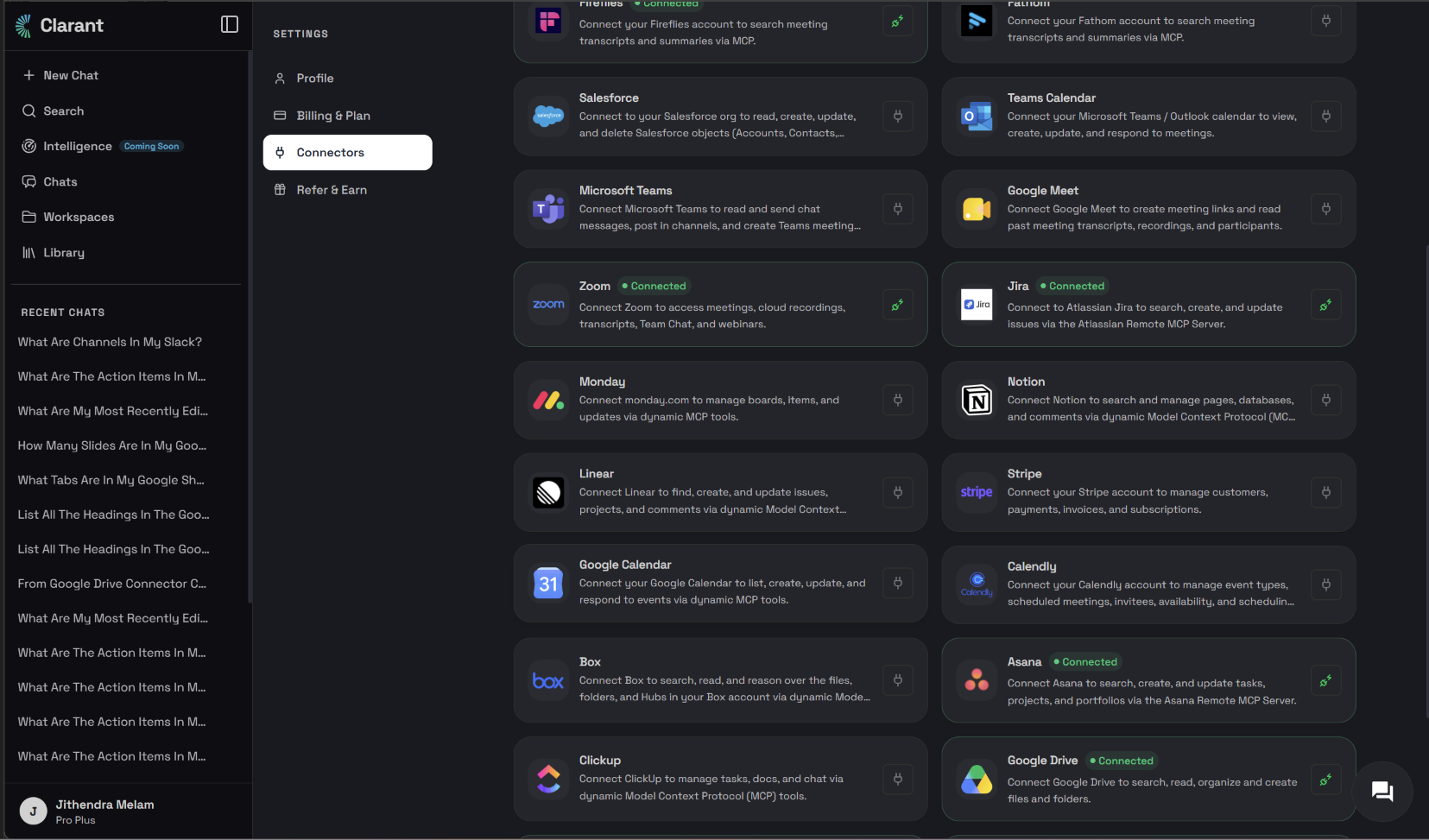
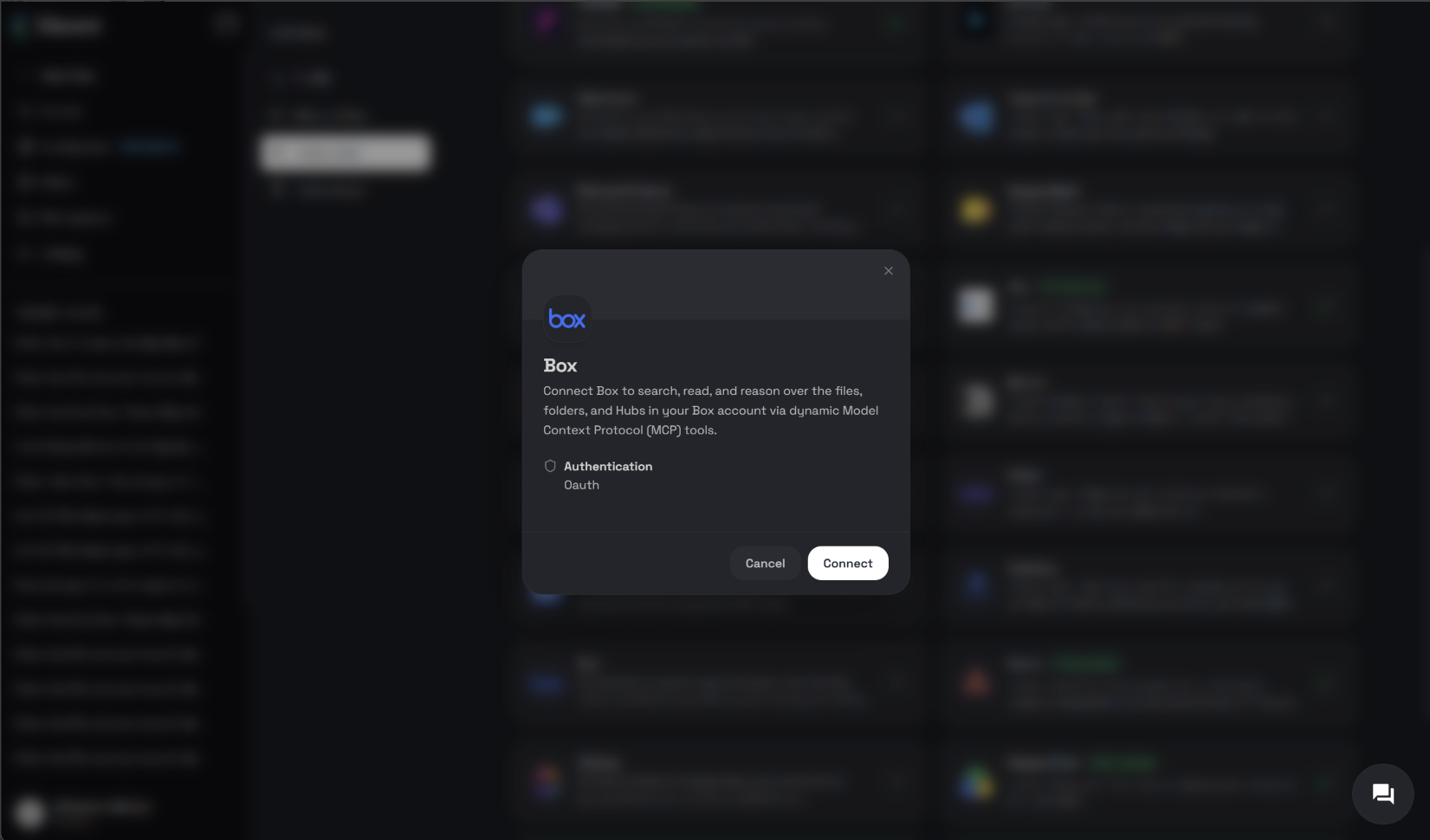
Find Box and click Connect
Locate Box in the connector list and click Connect. Clara will redirect you to Box to sign in.
Sign in to Box
Sign in with the Box account whose content you want Clara to work with. If you’re already signed in to Box in this browser, Box may skip straight to Step 4.
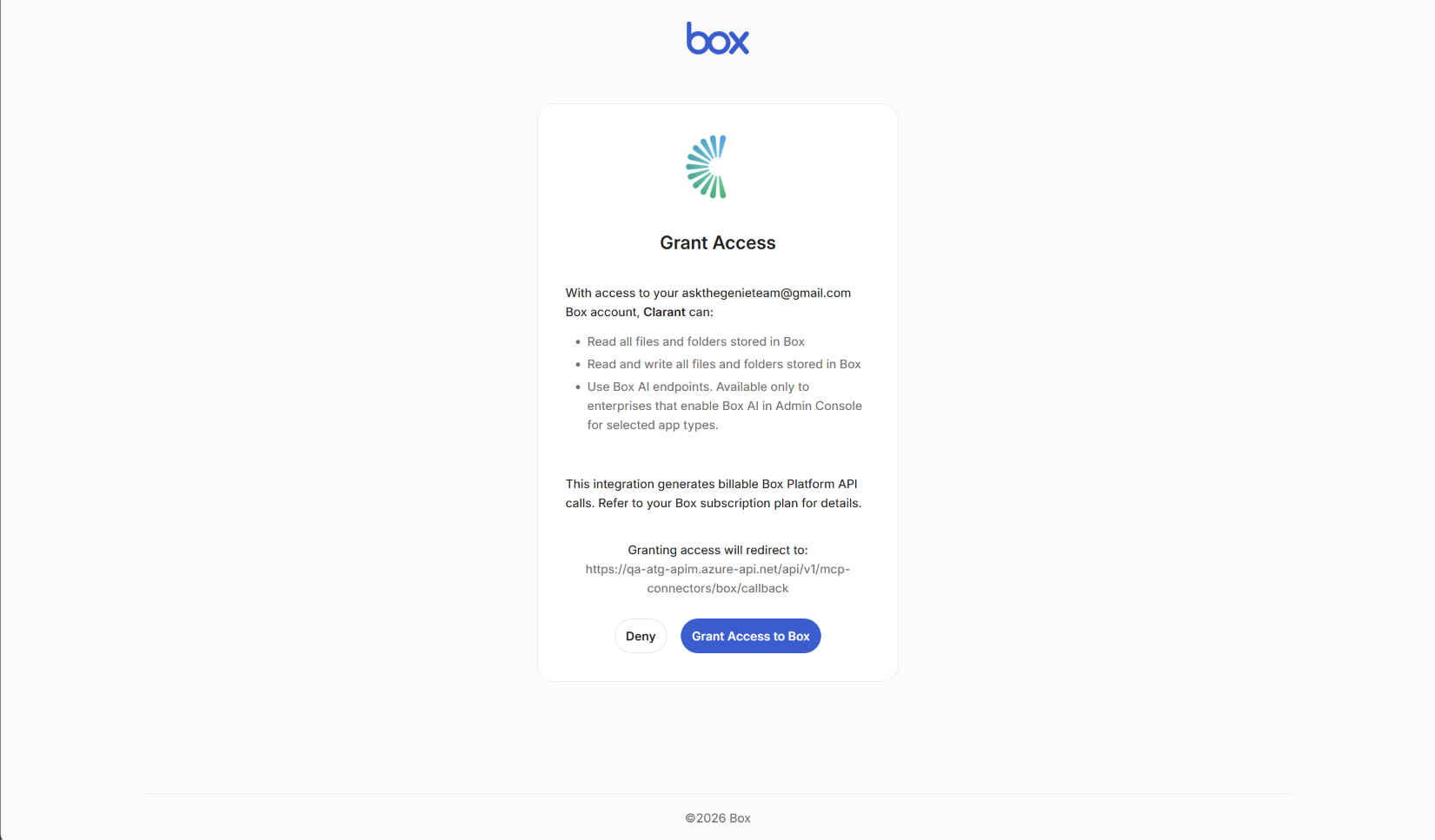
Review and grant access
Box shows an authorisation screen listing what Clara is requesting:
| Box permission | Why Clara needs it |
|---|---|
| Read and write all files and folders stored in Box | To search, browse and read your content, and to create folders, upload files, move, copy, rename and comment when you ask it to |
| Manage AI Requests | To use Box AI for answering questions about documents and extracting structured data |
Click Grant access to Box.
You’re returned to Clara
Box redirects you back to Settings → Connectors. Box should now show a Connected badge.
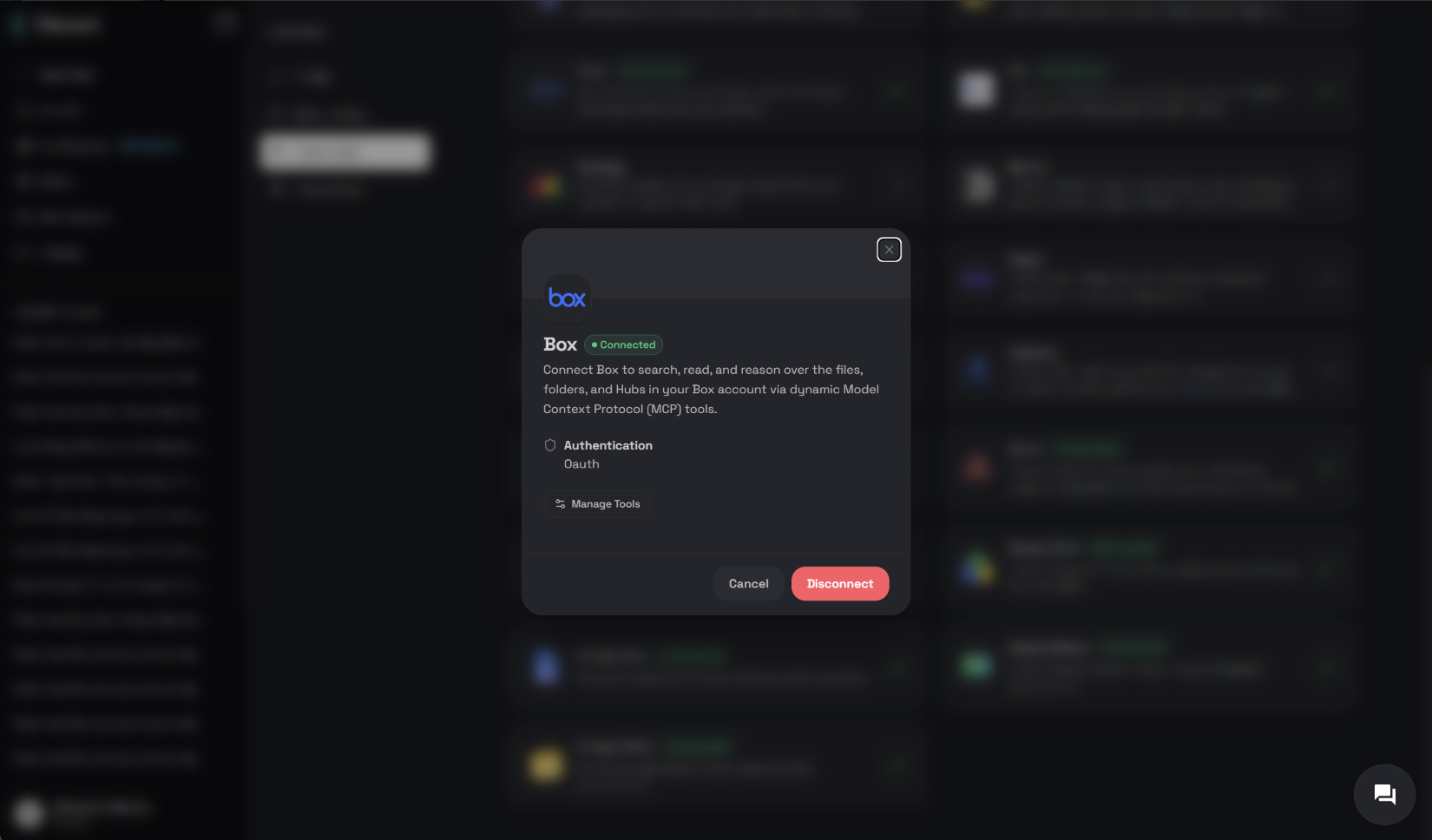
Confirm the tools loaded
Click into the Box connector. You should see the full list of Box capabilities Clara can use. If the list is empty, disconnect and reconnect — the capability list is fetched from Box at connection time.
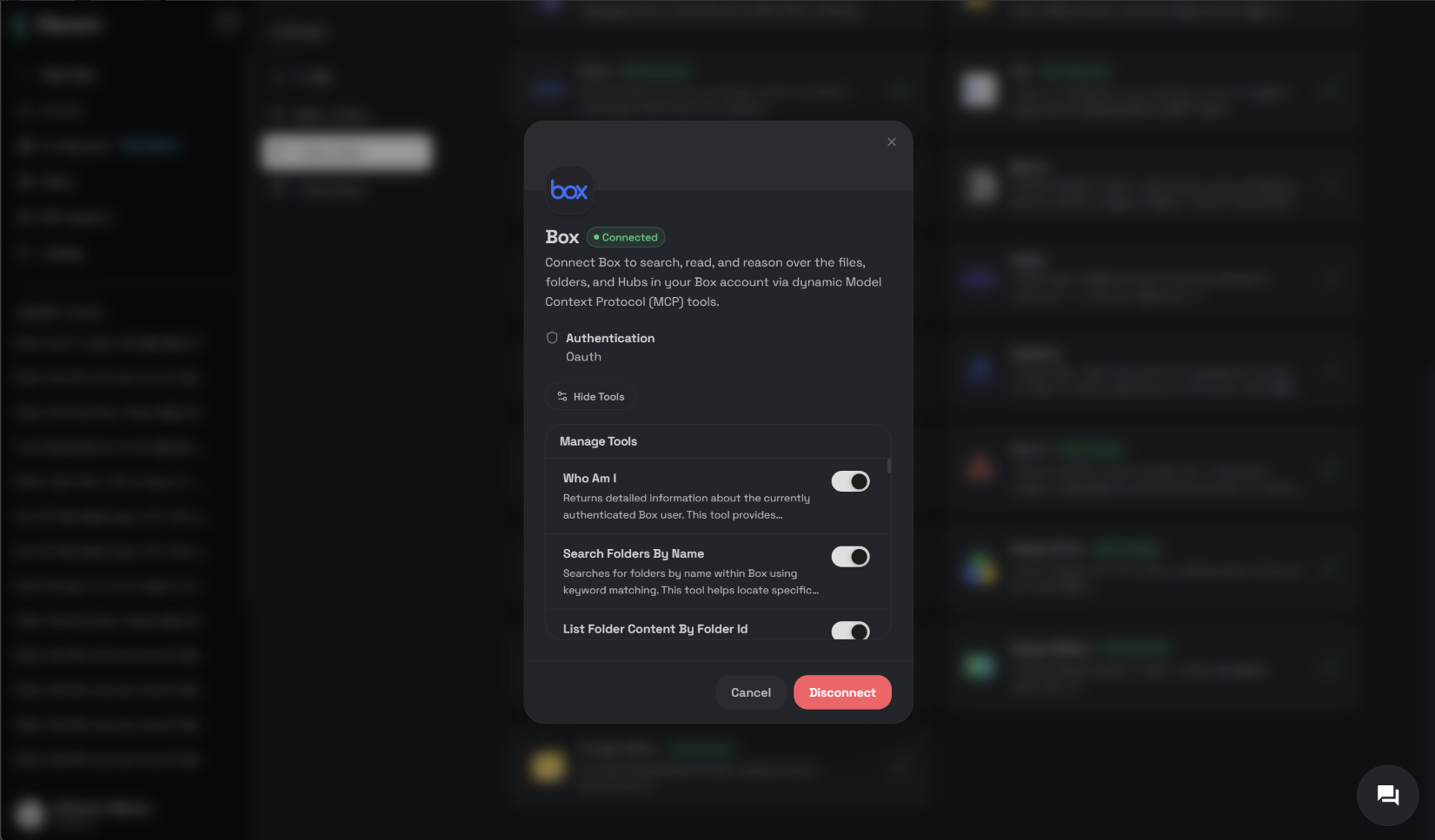
Configure the Integration
Verify the connection
Settings → Connectors → Box shows the current status. A healthy connection reads Connected. If it reads Reauthorisation required, click Connect again — see Troubleshooting.
AI Response Examples
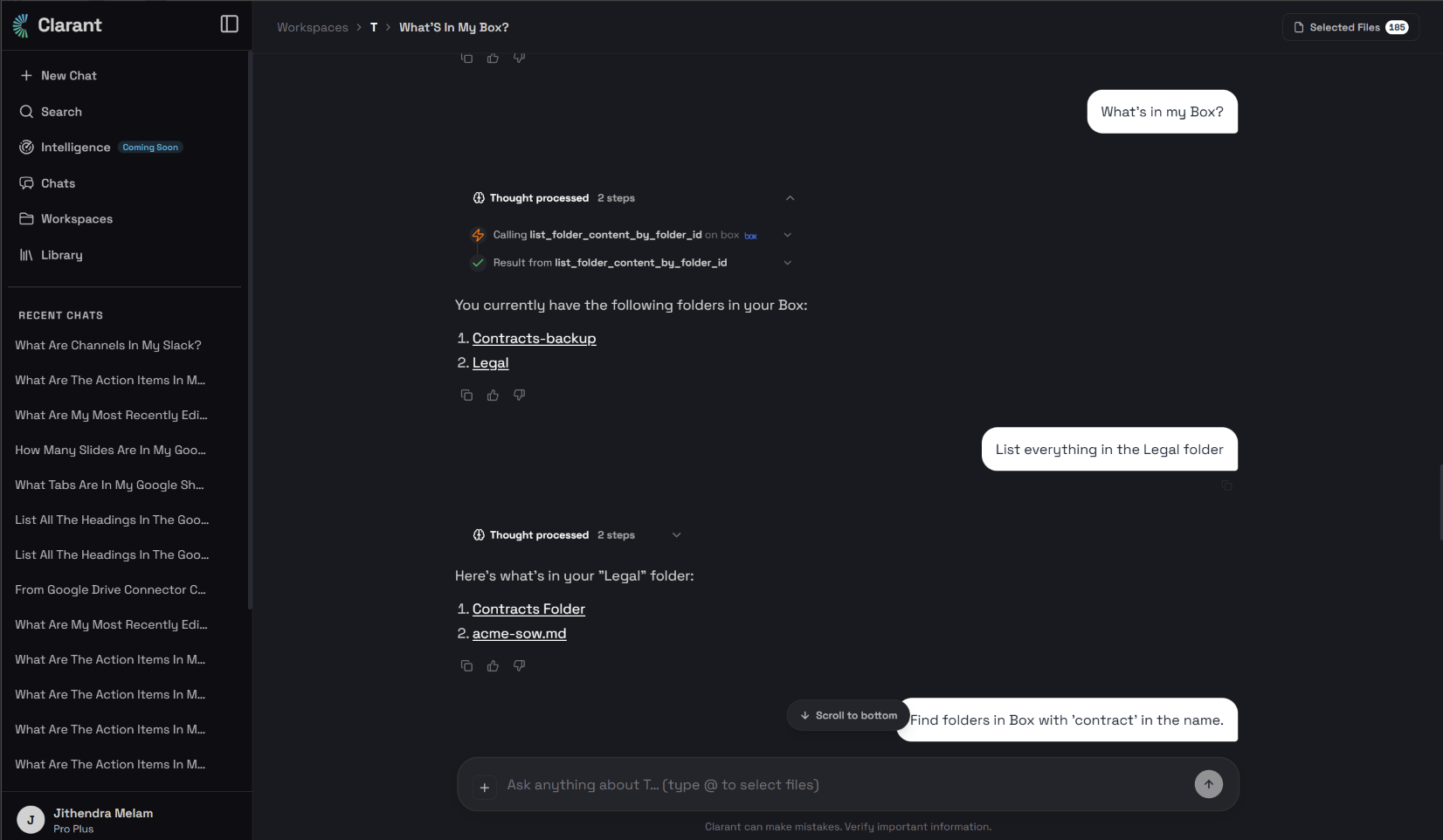
When Clara answers from Box, it names the documents it used and links straight to them, so you can open the source in Box and check for yourself.
Disconnecting Box
- Go to Settings → Connectors
- Click into Box
- Click Disconnect and confirm
You can reconnect at any time by repeating the install steps.
Uninstalling the Integration
Disconnecting in Clara is enough to cut off access. To also remove the authorisation on the Box side:
- As a user: sign in to Box, open Account Settings → Security, find Clara in your authorised applications and remove it.
- As a Box administrator: open Admin Console → Integrations → Platform Apps Manager, find Clara and disable or remove it. This revokes access for every user in your enterprise.
Revoking on the Box side invalidates Clara’s access immediately. The connector will show Reauthorisation required until someone reconnects.
Privacy & Security
- Authorisation uses Box OAuth 2.0. Clara never sees or stores your Box password.
- Access tokens are encrypted at rest and refreshed automatically.
- Clara operates as you. It cannot see any file, folder or Hub that your own Box account cannot open, and Box enforces every permission, classification and sharing rule on each request.
- Document content is read to answer your question and is not retained beyond what’s needed to produce and cite the answer.
- You can revoke access at any time from either side — Clara or Box.
See our Privacy Policy and Security overview for full details.
Troubleshooting
| Issue | What to check |
|---|---|
| Box refuses on the authorisation screen | Your organisation restricts external applications. Ask a Box administrator to enable Clara in Admin Console → Integrations → Platform Apps Manager. |
| Connector shows “Reauthorisation required” | Access was revoked in Box, or the connection sat unused past its refresh window. Click Connect to re-authorise. |
| AI questions and extraction fail | Box AI requires an AI-enabled Box plan. Reading, searching and browsing work regardless — check with your Box administrator whether Box AI is included. |
| Document generation requests fail | Box Doc Gen requires Box Enterprise Advanced and is not available through this integration. |
| Copying a Box Hub fails | A known fault on Box’s side, not with the integration. Create a new Hub and add the items to it instead. |
| “Item not found” | The file or folder may have been renamed, moved or trashed since it was last mentioned. Ask Clara to search for it again by name. |
| A file you just uploaded can’t be read | Box generates the text version of a file a few moments after upload. Wait around 30 seconds and ask again. |
| A folder listing looks incomplete | Large folders are shortened to fit the response. Clara will say so — narrow the request by file type, date or subfolder rather than asking for more pages. |
| Box changes aren’t appearing in your timeline | Check Settings → What Clara monitors and confirm Box is switched on. |
| A capability seems missing | Open Settings → Connectors → Box and check that capability hasn’t been switched off. |